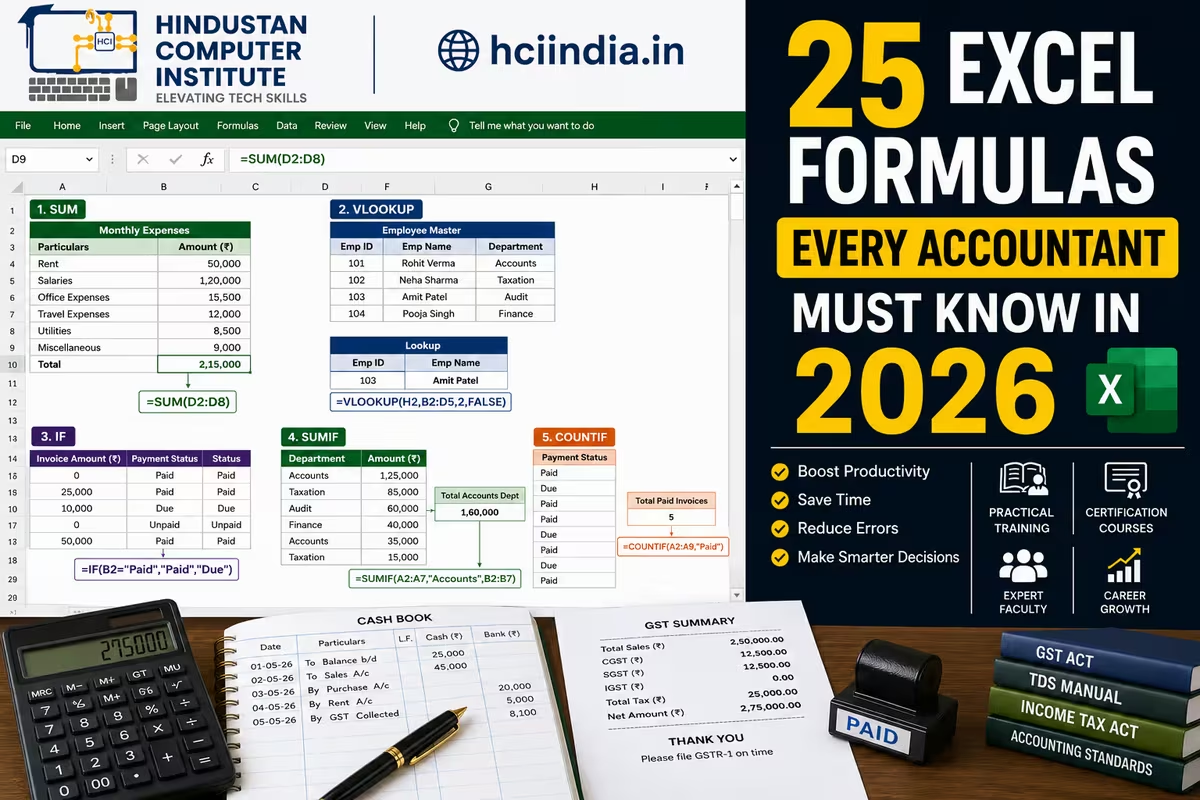
Every accountant in India works with Excel - but there is a large gap between using Excel and using it well. The difference shows up in how long reconciliations take, how often errors appear in reports, and whether you can answer "can you do this in Excel?" with a yes or a no at interview. These 25 formulas are the ones that come up every week in real accounting work - from basic totals to GST reconciliation to payroll calculations.
Why Excel Formulas Matter More Than Ever for Accountants in 2026
Tally Prime is where you record transactions. Excel is where you analyse, reconcile, and report them. Almost every accounting workflow that involves more than one source of data - comparing GST data from Tally with the GSTN portal, reconciling bank statements, preparing MIS reports for management - happens in Excel. And in 2026, with AI tools like Microsoft Copilot in Excel, knowing the underlying formulas is what makes you capable of using the AI assistance effectively, rather than just hoping it does the right thing.
HCI's ADFA programme covers all 25 formulas in this list as part of the Advanced Excel module - with accounting-specific exercises on GST data, payroll sheets, and financial reconciliation.
Top 25 Excel Formulas for Accountants - Quick Reference Table
| # | Formula | What It Does | Accounting Use Case |
|---|---|---|---|
| 1 | SUM | Adds a range of numbers | Totalling invoice amounts, salary columns, tax values |
| 2 | SUMIF | Adds numbers that meet one condition | Total sales for a specific product code or customer |
| 3 | SUMIFS | Adds numbers that meet multiple conditions | Total GST-eligible sales in a specific month for one state |
| 4 | VLOOKUP | Searches for a value and returns data from another column | Fetching product prices, HSN codes, party GSTINs from master data |
| 5 | XLOOKUP | Advanced lookup - searches in any direction, handles errors natively | Modern replacement for VLOOKUP in Excel 2019+ |
| 6 | IF | Returns one value if condition is true, another if false | Flagging overdue invoices, marking GST-exempt transactions |
| 7 | IFS | Handles multiple conditions without nesting IF functions | Categorising transactions into multiple tax slabs |
| 8 | COUNTIF | Counts cells that meet one condition | Counting how many invoices are unpaid, pending, or overdue |
| 9 | COUNTIFS | Counts cells meeting multiple conditions | Counting invoices above ₹50,000 from a specific supplier in a date range |
| 10 | INDEX + MATCH | Flexible lookup - searches any column and returns any other column | Lookups where VLOOKUP fails - return left column values |
| 11 | TEXT | Converts numbers/dates to formatted text | Formatting invoice dates, displaying amounts as "₹1,25,000" |
| 12 | CONCATENATE / TEXTJOIN | Joins text from multiple cells | Combining first name + last name, or building full addresses |
| 13 | LEFT / RIGHT / MID | Extracts characters from text strings | Extracting state code from GSTIN (first 2 characters), invoice series |
| 14 | TRIM | Removes extra spaces from text | Cleaning imported Tally data with trailing spaces that break VLOOKUP |
| 15 | LEN | Returns the number of characters in a cell | Validating that GSTINs are exactly 15 characters |
| 16 | DATE / DATEIF / EDATE | Works with dates - calculates differences and adds months | Calculating invoice due dates, ageing analysis, loan repayment schedules |
| 17 | TODAY / NOW | Returns current date / current date and time | Auto-updating daily reports, calculating days overdue from today |
| 18 | ROUND / ROUNDUP / ROUNDDOWN | Rounds numbers to specified decimal places | Rounding GST amounts, ensuring final invoice totals are paise-accurate |
| 19 | IFERROR | Returns a custom value instead of an error | Replacing #N/A errors in VLOOKUP columns with "Not Found" or zero |
| 20 | MAX / MIN | Returns the largest / smallest value in a range | Finding highest sales amount, lowest balance, maximum outstanding |
| 21 | AVERAGE / AVERAGEIF | Calculates the mean - with or without conditions | Average invoice value per customer, average monthly expense |
| 22 | Pivot Table (not a formula - a feature) | Summarises large datasets by any grouping in seconds | Monthly sales by product, GST liability by state, salary totals by department |
| 23 | SUBTOTAL | Calculates totals that respect active filters | Totals that update when you filter by month, category, or party |
| 24 | PMT | Calculates loan EMI based on interest rate, periods, and principal | EMI calculation for business loans, hire-purchase accounting |
| 25 | Data Validation (not a formula - a feature) | Restricts what can be entered in a cell - dropdown lists, number ranges | Standardising data entry in shared accounting sheets - no typos in GST rates |
The 5 Formulas Accountants Use Most - In Depth
The table above is your reference. These five are worth understanding more deeply because they come up in almost every accounting task.
SUMIFS is the workhorse formula for financial reporting. You will use it to answer questions like: "What is the total sales value for Customer ABC in April, excluding cancelled invoices?" The syntax is =SUMIFS(sum_range, criteria_range1, criteria1, criteria_range2, criteria2, ...) - you can stack as many conditions as needed. In GST reporting, SUMIFS is what you use to split total turnover by tax rate (5%, 12%, 18%, 28%) or by transaction type (B2B, B2C, exempt) from a raw export from Tally.
VLOOKUP and XLOOKUP are the connectors that make data from different sheets work together. Every time you export data from Tally - sales register, purchase register, ledger statement - you get a flat file that needs to be enriched with data from other sources: party GSTINs, HSN code descriptions, product categories. That enrichment is done with VLOOKUP or XLOOKUP. Master this and you halve the time spent on reconciliation tasks.
IF and IFS handle conditional logic. The accounting use case that trips up most people is flagging TDS deductibility: IF payment to a contractor exceeds ₹30,000 in a single payment or ₹1,00,000 in a year, TDS at 1–2% applies. You can build this rule directly into an Excel sheet that auto-flags transactions for TDS deduction. =IF(B2>30000,"TDS Applicable","Check Annual Total") is a starting point. IFS makes multi-condition versions cleaner.
Pivot Tables are the most powerful reporting tool in Excel and the one most students skip because it is not technically a "formula". Go to Insert → PivotTable. Drag the month field to Rows, the customer name to Columns, and the invoice amount to Values. You now have a month-wise, customer-wise sales summary that would take an hour to build manually - done in 60 seconds. Every management MIS report you will ever prepare starts with a Pivot Table.
IFERROR makes your spreadsheets professional. Without it, VLOOKUP errors show as ugly #N/A cells that confuse non-accountants. Wrap your VLOOKUP in IFERROR: =IFERROR(VLOOKUP(A2, MasterData!$A:$C, 2, FALSE), "Not in Master"). Now instead of #N/A, the cell shows "Not in Master" - which immediately tells you and your manager which items need to be added to the master data.
How to Learn These Formulas Fast - A Practical Approach
The mistake most self-learners make is reading about formulas without practising on real data. Here is a faster approach.
Download any previous month's expense sheet or bank statement from your accounts (or use sample data). Open Excel. Pick five formulas from the list above and build real calculations with that data - not textbook exercises, but actual totals, lookups, and conditional counts on numbers you recognise. This creates memory anchors that make the formula stick.
For VLOOKUP and SUMIFS specifically - which are the most commonly tested in accounting job interviews - practice building a mock sales reconciliation: one sheet with transaction data, another with a product/party master. Use VLOOKUP to pull master data into the transaction sheet. Use SUMIFS to create a month-wise summary. Run this exercise three times with different data sets and the formula will not confuse you in an interview.
At HCI, the ADFA and ADCA programmes cover Advanced Excel through exactly this kind of data-driven exercise - real accounting scenarios, not abstract formula memorisation. Students in our batches who had never used Excel beyond basic SUM are routinely handling VLOOKUP reconciliations within the first two months of training. See the ADCA programme or the accounting-focused ADFA programme for the Excel module details.
Want to master Advanced Excel for accounting work?
HCI's ADFA and ADCA programmes include hands-on Advanced Excel training with real accounting exercises - SUMIFS for GST data, VLOOKUP for reconciliations, Pivot Tables for MIS reports.
👉 Book a free counselling session to see the full Excel curriculum and confirm batch schedules.
Conclusion
These 25 formulas are not an exhaustive list of everything Excel can do - they are the ones you will use every week in real accounting work. SUMIFS for data slicing, VLOOKUP for master data linkage, IF for logic rules, Pivot Tables for management reporting, and IFERROR for clean, professional output. Build these five first. The remaining twenty follow naturally once you are comfortable with the core logic.
If you want to learn these formulas in the context of actual accounting workflows - GST data, payroll, bank reconciliation - book a free counselling session with HCI and ask about the Advanced Excel module inside our ADFA and ADCA programmes.
Author: Dinesh Sharma, Founder & CEO, Hindustan Computer Institute (MS Excel & AI Tools Expert)
Last Updated: May 2026