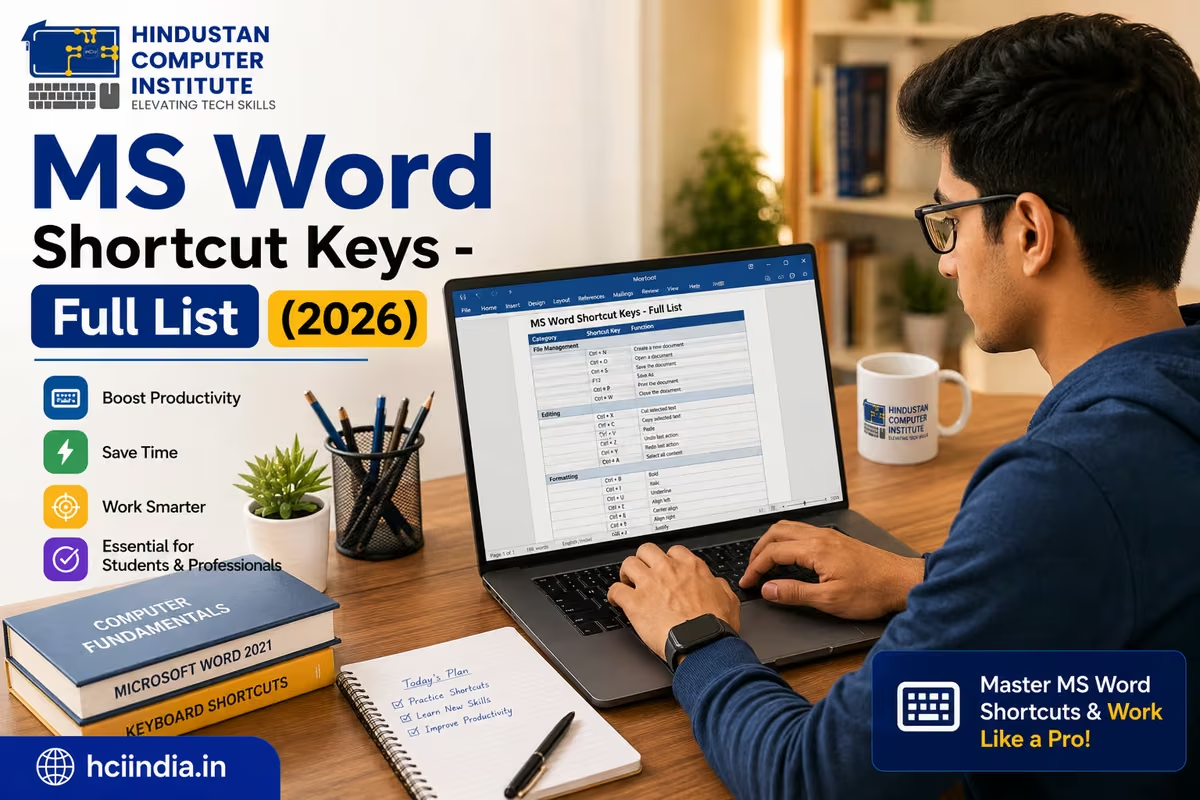
MS Word shortcut keys are keyboard combinations - like Ctrl+C to copy or Ctrl+B to bold - that let you work without reaching for the mouse. Learning even 20–30 of these shortcuts can cut your document editing time in half. This page lists all the important MS Word keyboard shortcuts organised by category, from basic formatting to advanced navigation.
Why MS Word Shortcut Keys Actually Matter
Here is a number that gets students' attention: in most government typing tests and office jobs, examiners do not just check your words per minute - they check how long you take to format, correct, and submit a document. A candidate who knows Ctrl+Z, Ctrl+Home, and Ctrl+Shift+End moves through tasks visibly faster than one who uses the mouse for everything.
In our MS Office batches at HCI, students who practise shortcuts consistently hit professional formatting speed within 3–4 weeks. Those who skip them take twice as long on the same tasks, even with higher raw typing speeds. The difference is not talent. It is muscle memory built deliberately.
MS Word is part of nearly every computer diploma curriculum - BCC, DCA, ADCA, and MDCAA all include it. But "knowing MS Word" and "using MS Word at job-ready speed" are two different things. Shortcuts are the gap between them. 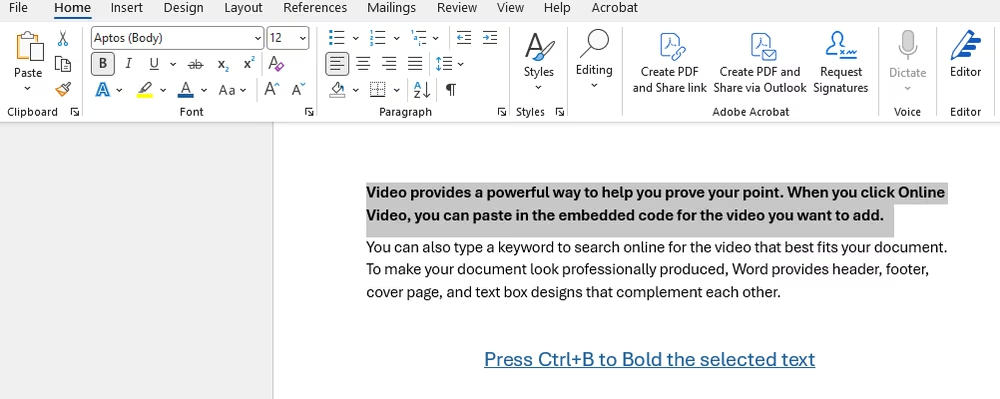
MS Word Shortcut Keys: Complete List by Category
The shortcuts below work on Microsoft Word 2016, 2019, 2021, and Microsoft 365 on Windows. Mac users replace Ctrl with ⌘ Command for most combinations.
File & Document Shortcuts
| Shortcut | Action | When You Use It |
|---|---|---|
| Ctrl + N | New document | Starting a fresh file |
| Ctrl + O | Open existing file | Opening a saved document |
| Ctrl + S | Save | Saving your work (use often) |
| Ctrl + Shift + S | Save As | Saving a copy with a new name |
| Ctrl + W | Close document | Closing the current file |
| Ctrl + P | Opening the print dialog | |
| F12 | Save As (direct) | Quick save with rename |
| Alt + F4 | Exit Word | Closing the application |
Basic Editing Shortcuts
| Shortcut | Action | Notes |
|---|---|---|
| Ctrl + C | Copy | Works on selected text or objects |
| Ctrl + X | Cut | Removes and stores selected content |
| Ctrl + V | Paste | Pastes at cursor position |
| Ctrl + Z | Undo | Reverses last action - use repeatedly |
| Ctrl + Y | Redo | Re-applies undone action |
| Ctrl + A | Select All | Selects entire document content |
| Ctrl + F | Find | Opens search bar |
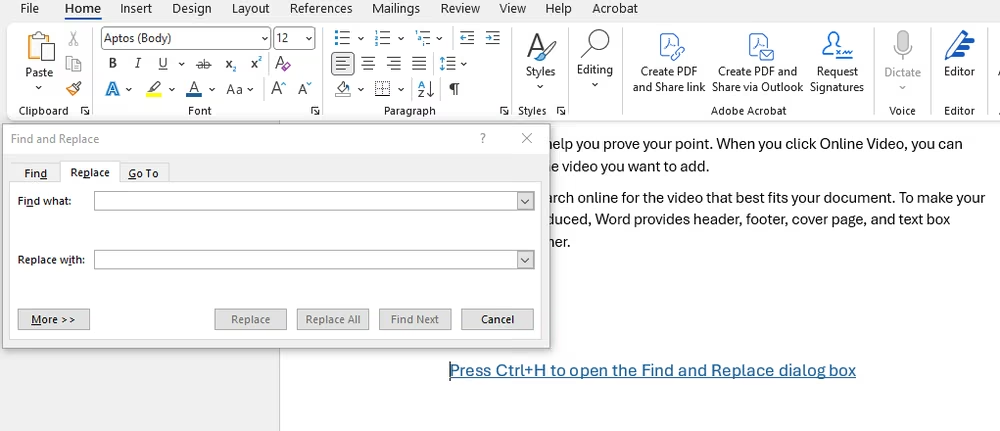
| Ctrl + H | Find & Replace | Find text and replace with new text |
| Ctrl + G | Go To | Jump to page, line, or section |
| Delete | Delete character (right) | Deletes character after cursor |
| Backspace | Delete character (left) | Deletes character before cursor |
| Ctrl + Delete | Delete word (right) | Deletes full word after cursor |
| Ctrl + Backspace | Delete word (left) | Deletes full word before cursor |
Text Formatting Shortcuts
| Shortcut | Action | Use Case |
|---|---|---|
| Ctrl + B | Bold | Headings, key terms |
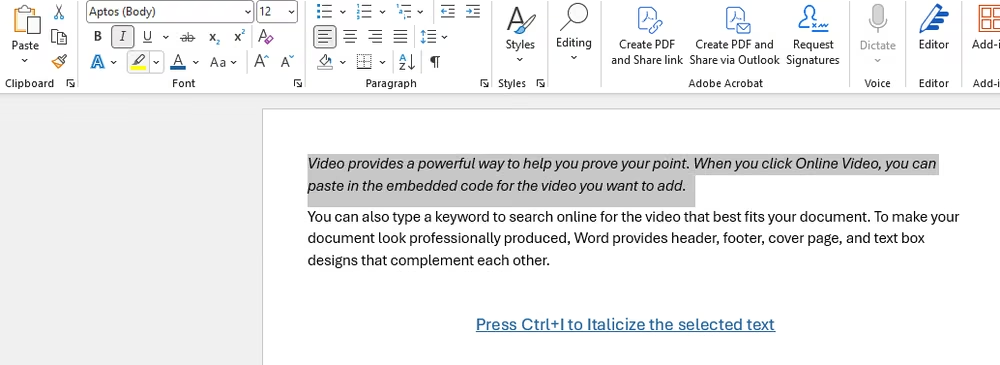
| Ctrl + I | Italic | Emphasis, book titles |
| Ctrl + U | Underline | Links, highlighted terms |
| Ctrl + Shift + W | Underline words only | Selective word underlining |
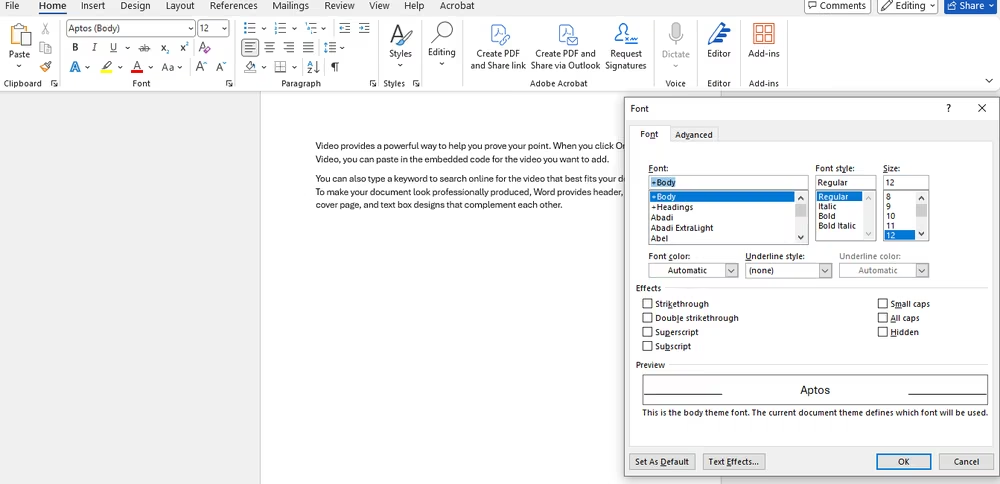
| Ctrl + D | Font dialog | All font settings in one window |
| Ctrl + Shift + F | Font name box | Quick font change |
| Ctrl + Shift + P | Font size box | Quick size change |
| Ctrl + ] | Increase font size by 1pt | Fine-tuning size |
| Ctrl + [ | Decrease font size by 1pt | Fine-tuning size |
| Ctrl + Shift + > | Increase font size | Jumps to next size |
| Ctrl + Shift + < | Decrease font size | Jumps to previous size |
| Ctrl + Shift + A | ALL CAPS toggle | Heading or title formatting |
| Ctrl + Shift + K | Small Caps toggle | Stylistic heading formatting |
| Shift + F3 | Change case | Cycles: lowercase → Title Case → UPPERCASE |
| Ctrl + Shift + C | Copy formatting | Copy style from selected text |
| Ctrl + Shift + V | Paste formatting | Apply copied style elsewhere |
| Ctrl + Spacebar | Remove character formatting | Reset text to default style |
| Ctrl + Q | Remove paragraph formatting | Reset paragraph to default |
Paragraph & Alignment Shortcuts
| Shortcut | Action | Notes |
|---|---|---|
| Ctrl + E | Centre align | Headings, titles |
| Ctrl + L | Left align | Default body text alignment |
| Ctrl + R | Right align | Dates, signatures |
| Ctrl + J | Justify | Formal documents, reports |
| Ctrl + 1 | Single line spacing | Compact documents |
| Ctrl + 2 | Double line spacing | Academic submissions |
| Ctrl + 5 | 1.5 line spacing | Balanced, readable layout |
| Ctrl + M | Indent paragraph | Moves paragraph right |
| Ctrl + Shift + M | Remove indent | Moves paragraph left |
| Tab | Indent (in list) | Promotes list item |
| Shift + Tab | Outdent (in list) | Demotes list item |
| Ctrl + T | Hanging indent | Bibliography, references |
| Ctrl + Shift + T | Remove hanging indent | Reset to normal |
Navigation Shortcuts
| Shortcut | Action | Notes |
|---|---|---|
| Ctrl + Home | Go to document start | Essential for long documents |
| Ctrl + End | Go to document end | Jump to last page instantly |
| Ctrl + → | Move one word right | Faster than single key presses |
| Ctrl + ← | Move one word left | Same, going back |
| Ctrl + ↑ | Move to paragraph start (above) | Paragraph-level navigation |
| Ctrl + ↓ | Move to paragraph start (below) | Skip through paragraphs |
| Home | Go to line start | Start of current line |
| End | Go to line end | End of current line |
| Page Up | Scroll up one screen | View previous content |
| Page Down | Scroll down one screen | View next content |
| Ctrl + Page Up | Previous page top | Jump between pages |
| Ctrl + Page Down | Next page top | Jump between pages |
| F5 | Go To dialog | Navigate by page / bookmark |
Selection Shortcuts
| Shortcut | Action |
|---|---|
| Shift + → | Select one character right |
| Shift + ← | Select one character left |
| Ctrl + Shift + → | Select one word right |
| Ctrl + Shift + ← | Select one word left |
| Shift + Home | Select to line start |
| Shift + End | Select to line end |
| Shift + Ctrl + Home | Select from cursor to document start |
| Shift + Ctrl + End | Select from cursor to document end |
| Shift + Page Down | Select one screen down |
| Shift + Page Up | Select one screen up |
| Ctrl + A | Select entire document |
Styles & Headings Shortcuts
| Shortcut | Action |
|---|---|
| Ctrl + Alt + 1 | Apply Heading 1 style |
| Ctrl + Alt + 2 | Apply Heading 2 style |
| Ctrl + Alt + 3 | Apply Heading 3 style |
| Ctrl + Shift + N | Apply Normal style |
| Ctrl + Shift + L | Apply List Bullet style |
| Alt + Ctrl + K | Start AutoFormat |
Table Shortcuts (inside a Word table)
| Shortcut | Action |
|---|---|
| Tab | Move to next cell |
| Shift + Tab | Move to previous cell |
| Alt + Home | First cell in row |
| Alt + End | Last cell in row |
| Alt + Page Up | First cell in column |
| Alt + Page Down | Last cell in column |
| Tab (in last cell) | Add new row at end of table |
Review & Proofing Shortcuts
| Shortcut | Action |
|---|---|
| F7 | Spell check and grammar |
| Shift + F7 | Thesaurus |
| Ctrl + Shift + E | Track Changes on/off |
| Alt + Shift + C | Close Reviewing Pane |
| Ctrl + Alt + M | Insert comment |
View & Window Shortcuts
| Shortcut | Action |
|---|---|
| Ctrl + F2 | Print Preview |
| Alt + Ctrl + P | Print Layout view |
| Alt + Ctrl + O | Outline view |
| Alt + Ctrl + N | Draft view |
| Ctrl + Shift + * | Show/hide formatting marks |
| Alt + W, Q | Zoom dialog |
| F11 | Full screen reading toggle |
Special Insert Shortcuts
| Shortcut | Action |
|---|---|
| Ctrl + Enter | Insert page break |
| Shift + Enter | Line break (without new paragraph) |
| Ctrl + Shift + Enter | Column break |
| Ctrl + F9 | Insert empty field |
| Alt + Shift + D | Insert current date field |
| Alt + Shift + T | Insert current time field |
| Ctrl + K | Insert hyperlink |
| Alt + N + P | Insert picture |
Which Shortcuts to Learn First: A Practical Priority List
There are over 100 MS Word shortcuts, but you do not need to memorise all of them. In our experience at HCI, most students do 80% of their work using about 20 shortcuts. Start here and add more once these feel automatic.
The absolute first-week shortcuts: Ctrl+C, Ctrl+V, Ctrl+X, Ctrl+Z, Ctrl+S, Ctrl+B, Ctrl+I, Ctrl+U, Ctrl+A, Ctrl+F. Ten shortcuts, zero special memory needed - you will use all of them every session.
Once those are muscle memory (usually 3–5 days of daily practice), add the navigation layer: Ctrl+Home, Ctrl+End, Ctrl+→, Ctrl+←, Shift combinations for selection. This is where your speed starts to separate from other candidates in typing tests.
The third wave is formatting: Ctrl+E, Ctrl+L, Ctrl+R, Ctrl+J, Ctrl+1, Ctrl+2, Ctrl+Alt+1 for headings. These matter most for government exam-style documents and office work.
Learning MS Word as part of a computer course?
At HCI, MS Office - including practical Word, Excel, and PowerPoint training - is part of our Basic Computer Course (BCC) and ADCA (AI Integrated) programmes. Students practise on real documents from day one, not just theory slides.
👉 Book a free counselling session - we will help you figure out which course fits your current level and career goal.
MS Word Shortcuts That Help Most in Government Typing Tests
If you are preparing for SSC CHSL, SSC CGL, J&K SSB computer operator posts, or any government job with a typing component, the examiner is watching your formatting speed as much as your WPM count.
The shortcuts that show up most in these tests: Ctrl+Z (undo a mistake without losing flow), Ctrl+Enter (start a new page cleanly), Ctrl+Home and Ctrl+End (reposition cursor quickly), and Shift+F3 (fix capitalisation errors without retyping). These four alone can recover several seconds per paragraph - which adds up across a 10-minute test.
One specific pattern many students miss: when you need to centre a heading and bold it, the slow way is three mouse clicks on the ribbon. The fast way is Ctrl+E followed immediately by Ctrl+B. Two keystrokes, under a second. Do that ten times in a document and you have saved meaningful time.
Students in our Professional Typing Course at HCI build this kind of shortcut fluency as part of the speed-building curriculum - not as an afterthought at the end.
How to Actually Memorise MS Word Keyboard Shortcuts
Flashcards work for vocabulary. They mostly do not work for keyboard shortcuts. What works is forced repetition in real documents.
The method that works fastest: pick five shortcuts Monday morning. Ban the mouse for those five actions all week. Only those five. By Friday, they are automatic. Add five more the next Monday. In six weeks you know thirty shortcuts so thoroughly that you stop thinking about them.
A few other things that genuinely help. Print the table above (or save it to your phone) and keep it visible while you work for the first two weeks. Use Word's Tell Me bar (Alt+Q) to discover shortcuts for commands you already use with the mouse - it often shows the keyboard shortcut next to the option. And whenever you catch yourself reaching for the mouse for a repeated task, stop and look up whether a shortcut exists.
Why Learn MS Word at Hindustan Computer Institute?
At HCI, MS Office is not taught as isolated commands on a whiteboard. Our students work through real-world documents - letters, reports, tables, resumes - from the first week. By the time they finish the ADCA course, they are creating multi-section documents with styles, page numbers, tables of contents, and tracked changes.
HCI is an ISO 9001:2015 certified institute with over 2,500 students trained since inception. Our instructors have worked with batches from across Billawar, Dewal, Phinter- we know exactly which shortcuts come up in SSC and J&K SSB typing tests, and we build that into the practice schedule. Students also get hands-on time in our computer labs, not just demo walkthroughs. The difference shows in placement outcomes - 100% of students who complete their programme receive placement support through our partner network.
Conclusion
MS Word shortcut keys are not a nice-to-have extra - they are the difference between working at learner speed and working at office speed. Pick ten from this list today, practise them on real documents, and you will see the difference before the week is out. If you want structured practice with an instructor who can correct your habits early, that is exactly what we do at HCI. Start with a free counselling session and we will help you choose the right course for your level and goals - reach out here.
Author: Dinesh Sharma, Founder & Director, Hindustan Computer Institute (HCI), Billawar
Last Updated: July 2026