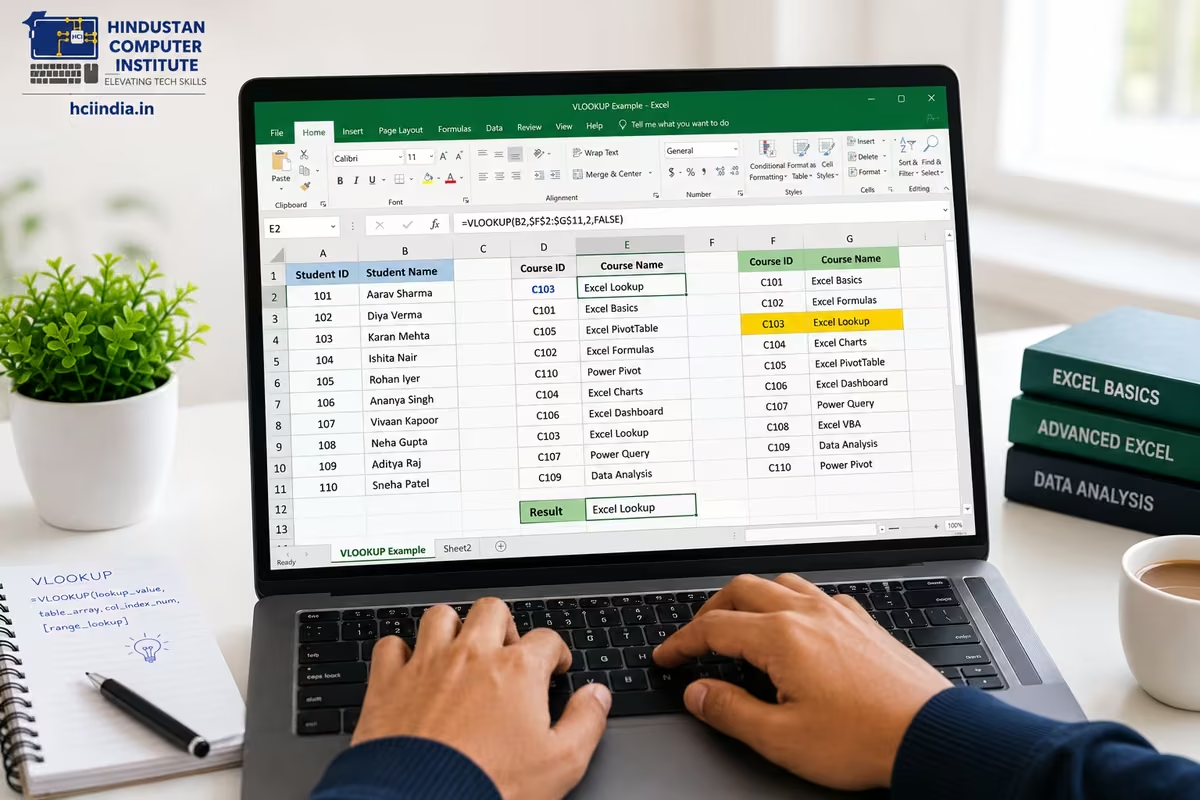
VLOOKUP in Excel searches for a value in the leftmost column of a table and returns a corresponding value from a column you specify. Its syntax is =VLOOKUP(lookup_value, table_array, col_index_num, [range_lookup]). It is one of the most-used Excel functions in accounting, data entry, HR, and MIS roles across India - and one of the most misunderstood.
What Does VLOOKUP Actually Do?
Think of VLOOKUP as a very fast search assistant. You give it a name, a table to search through, and a column number to look at - and it brings back the matching answer. That's the whole idea. "V" stands for Vertical, because it searches down a column, not across a row.
Here's a situation every accountant has faced: you have a list of 500 employee IDs in one sheet and their salaries in another. You need to pull each employee's salary next to their name - without copying and pasting 500 rows manually. VLOOKUP does this in seconds. One formula, dragged down, done.
It sounds simple. And for clean data, it is. The trouble starts when your data has gaps, extra spaces, duplicate entries, or when you need to look rightward instead of left. That's where students get stuck - and where this guide goes deeper than most.
The VLOOKUP Syntax - Broken Down Clearly
The full formula looks like this:
=VLOOKUP(lookup_value, table_array, col_index_num, [range_lookup])
Each of the four arguments has a specific job. Here's what they actually mean, without the textbook language:Argument What You Type Plain Meaning Example lookup_value A cell reference or value What you're searching for A2 (the Employee ID you want to find)table_array A range of cells The table to search through - must start with the search column on the left $D$2:$F$100 (your master data table)col_index_num A number (1, 2, 3...) Which column from the left of your table holds the answer you want 3 (the 3rd column of the table)range_lookup TRUE or FALSE FALSE = exact match only (what you almost always want); TRUE = approximate match FALSE
One thing to burn into memory: always use FALSE for the last argument unless you're doing something like tax-slab lookups or grading systems. In everyday accounting and data work, TRUE gives you wrong answers more often than right ones - it finds the closest match, which is not the same as the correct match.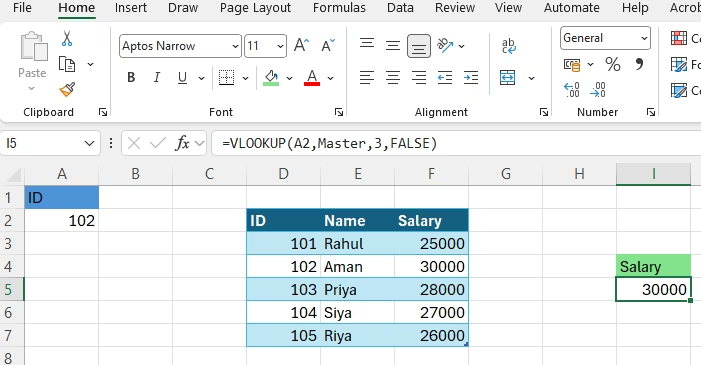
VLOOKUP in Excel - Three Real-World Examples
Definitions only take you so far. The fastest way to understand VLOOKUP is to see it working on data you'd actually encounter in a job.
Example 1 - Pulling salaries from a master employee list
You have Sheet 1 with employee names in column A and employee IDs in column B. Sheet 2 is your HR master sheet with IDs in column A and salaries in column C. You want each employee's salary to appear in column C of Sheet 1.
Formula in Sheet1, cell C2:
=VLOOKUP(B2, Sheet2!$A$2:$C$200, 3, FALSE)
This searches for the value in B2 (your employee ID) inside the master table on Sheet 2, and pulls back whatever is in column 3 (salary). The dollar signs lock the table range so the formula doesn't shift when you drag it down.
Example 2 - Product price lookup for billing
You have an order form where the customer selects a product code. You need the unit price to appear automatically. Your price list starts at G1, with product codes in column G and prices in column H.
Formula in the price cell:
=VLOOKUP(E2, $G$1:$H$50, 2, FALSE)
The moment someone types a product code in E2, the price fills in. This is exactly the setup most shopkeepers and small business accountants in J&K and Punjab use when they start moving their billing to Excel - or before they switch to Tally or Marg ERP.
Example 3 - Grade assignment from marks
This is the one case where TRUE actually makes sense. You have a marks column and a grade table (0 = F, 40 = D, 55 = C, 70 = B, 85 = A). With range_lookup = TRUE, VLOOKUP finds the largest value in the grade table that is less than or equal to the student's marks.
Formula:
=VLOOKUP(B2, $E$2:$F$6, 2, TRUE)
The grade table must be sorted in ascending order for this to work. If it's not sorted, you'll get random wrong results with no error message - the most dangerous kind of mistake in Excel.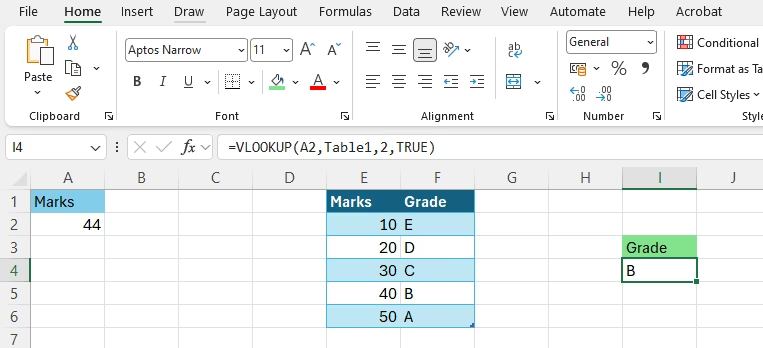
VLOOKUP Errors - What They Mean and How to Fix Them
This is the section most tutorials skip, which is why so many students abandon VLOOKUP the first time it breaks on them. Every VLOOKUP error has a specific cause. Once you know the cause, fixing it takes about 30 seconds.Error What It Means Most Common Cause How to Fix It #N/AValue not found Extra space in the lookup value or table (e.g. "EMP01 " vs "EMP01"), OR the value genuinely doesn't exist in the table Wrap your lookup_value in TRIM(): =VLOOKUP(TRIM(A2), ...). Also check if the lookup column has text-formatted numbers vs actual numbers.#REF!Column number out of range The col_index_num you entered is larger than the number of columns in your table_array Count the columns in your table. If your table is D:F (3 columns), col_index_num can only be 1, 2, or 3. #VALUE!Wrong data type col_index_num is less than 1, or is text instead of a number Check that the third argument is a positive whole number like 2 or 3 - not a cell reference containing text. Wrong result (no error shown) Approximate match returning the wrong row range_lookup is TRUE but the table is unsorted, or you forgot to type FALSE Change the last argument to FALSE for exact match, or sort your lookup table in ascending order if you need TRUE. Formula shifts when copied down Table range is not locked table_array was typed as D2:F100 instead of $D$2:$F$100 Select the table range in the formula and press F4 to add dollar signs. This locks it as an absolute reference.
The #N/A caused by trailing spaces is the single most common Excel support question we see at HCI. Someone exports data from Tally or Marg ERP, pastes it into Excel, and then VLOOKUP mysteriously fails to find values it should clearly find. Nine times out of ten, there's a hidden space sitting at the end of an entry in the source column. TRIM() removes it instantly.
A quick way to check: use =LEN(A2) on your lookup value and =LEN(D2) on the matching entry in the table. If the numbers don't match, there's extra whitespace somewhere.
Learning Excel for a job in accounting or data entry?
At HCI Billawar, our ADFA course and MDCAA programme both include Advanced Excel with hands-on lab sessions - VLOOKUP, XLOOKUP, pivot tables, conditional formatting, and the full set of functions employers actually test for. Over 2,500 students have trained with us, with 100% placement support after course completion.
👉 Book a free counselling session - tell us your target job role and we'll walk you through what to learn first.
XLOOKUP vs VLOOKUP - What Changed and Should You Switch?
XLOOKUP was introduced in Excel 365 and Excel 2021. Microsoft built it specifically to fix VLOOKUP's limitations - and it does that well. But knowing which one to use matters, because VLOOKUP files shared with someone running Excel 2019 or earlier will work fine; XLOOKUP formulas will not.Feature VLOOKUP XLOOKUP Syntax =VLOOKUP(value, table, col_num, FALSE)=XLOOKUP(value, lookup_array, return_array)Can search left (return column to the left of search column)? No - lookup column must always be leftmost Yes - any column in any direction Default match mode Approximate (TRUE) - you must type FALSE for exact Exact match - no extra argument needed If value not found Returns #N/AReturns a custom message you specify (e.g. "Not found") Works in older Excel (2019, 2016)? Yes - works in all versions No - Excel 365 and Excel 2021 only Can return multiple columns at once? No - one column at a time Yes - return an entire range in one formula Searches from bottom up? No Yes - useful when you have duplicate entries and want the last match Typical use case in India Shared files, older office systems, exported Tally/ERP data Modern Excel 365 environments, MIS, analytics roles
Here's the honest answer to "should I switch to XLOOKUP?": learn both. In an interview, knowing XLOOKUP signals that you're current. In a job where your colleagues are on Excel 2016 or 2019, using XLOOKUP in a shared file will break their workbook. Know which version of Excel the company uses before you decide.
The XLOOKUP syntax for the same employee salary example from earlier would be:
=XLOOKUP(B2, Sheet2!$A$2:$A$200, Sheet2!$C$2:$C$200, "Not found")
Cleaner. No column number to count. And if the employee ID isn't found, it says "Not found" instead of showing a red error cell - which is much better in a report someone else has to read.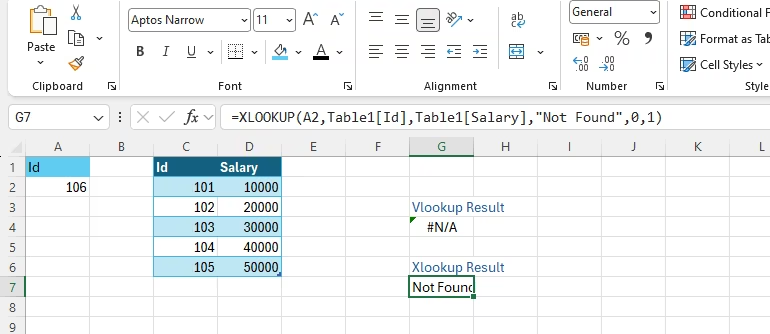
Where VLOOKUP Gets Used in Real Jobs
Students sometimes ask whether VLOOKUP is actually used in jobs or just taught for exams. It's used constantly. Here's where it shows up most in the kinds of roles HCI students typically move into:
Accountants use it daily for reconciling bank statements against ledger entries, pulling GST rates from a rate master into invoices, and matching vendor invoices to purchase orders. Anyone working with Tally or Marg ERP exports data as Excel files regularly - and VLOOKUP is the first tool used to cross-reference those exports.
Data entry operators and MIS executives use it to merge reports from different departments. Sales data from one sheet, target data from another, and VLOOKUP combines them into a single summary. A company's monthly MIS report is often built almost entirely on LOOKUP formulas.
HR professionals use it for payroll - matching employee codes to pay grades, attendance data to salary structures, and PF rates to employee categories.
For competitive exams, VLOOKUP questions appear in SSC CHSL, banking clerk exams, and state government computer operator tests. The question types are usually: "What does this formula return?" or "Which argument causes the #N/A error?" - both of which are answerable after reading this guide.
Why Learn Excel the Right Way at Hindustan Computer Institute
Reading about VLOOKUP and actually using it on real data are different things. We've seen this pattern in our batches at HCI consistently - students who study Excel from notes score well in MCQ-based exams but freeze when an interviewer asks them to demonstrate a formula live on screen.
Our ADFA course and MDCAA programme both include structured Excel lab sessions where students work with realistic datasets - payroll sheets, inventory tables, billing records - rather than toy examples. By the end of the Advanced Excel module, students can write nested VLOOKUP formulas, debug #N/A errors, build pivot tables, and explain the difference between absolute and relative cell references without hesitation.
HCI is ISO 9001:2015 certified, MSME registered, and has trained over 2,500 students from Billawar, Dewal. Our online batches mean students from Jammu, Kathua, Pathankot, and beyond can access the same structured Excel training as students sitting in our Billawar lab. Placement support is part of every course - we share student profiles directly with hiring partners including Genpact, Accenture, and HCL, all of whom list Excel proficiency as a non-negotiable requirement.
Conclusion
VLOOKUP is one of those Excel skills that earns its keep every single working day in accounting, data entry, MIS, and HR roles. Learn the four arguments properly, use FALSE for exact matches by default, and you'll handle 90% of real-world lookup tasks without hitting errors. When you do hit one - and you will - the fix is almost always TRIM() for #N/A or a locked table range for a shifting formula. XLOOKUP is worth learning alongside it, especially if you're targeting MIS or analytics roles in companies running Microsoft 365.
If you want to move from reading about Excel to actually building confidence with it, book a free counselling session at HCI. Tell us which course or job role you're working toward and we'll tell you exactly which Excel modules are relevant - no generic advice, just a straight answer.
Author: Dinesh Sharma, Founder & Director, Hindustan Computer Institute - MS Excel & Computer Applications Expert (ISO 9001:2015 Certified)
Last Updated: July 2026